
How to Swap Cryptocurrency in Trezor Suite with ChangeHero?
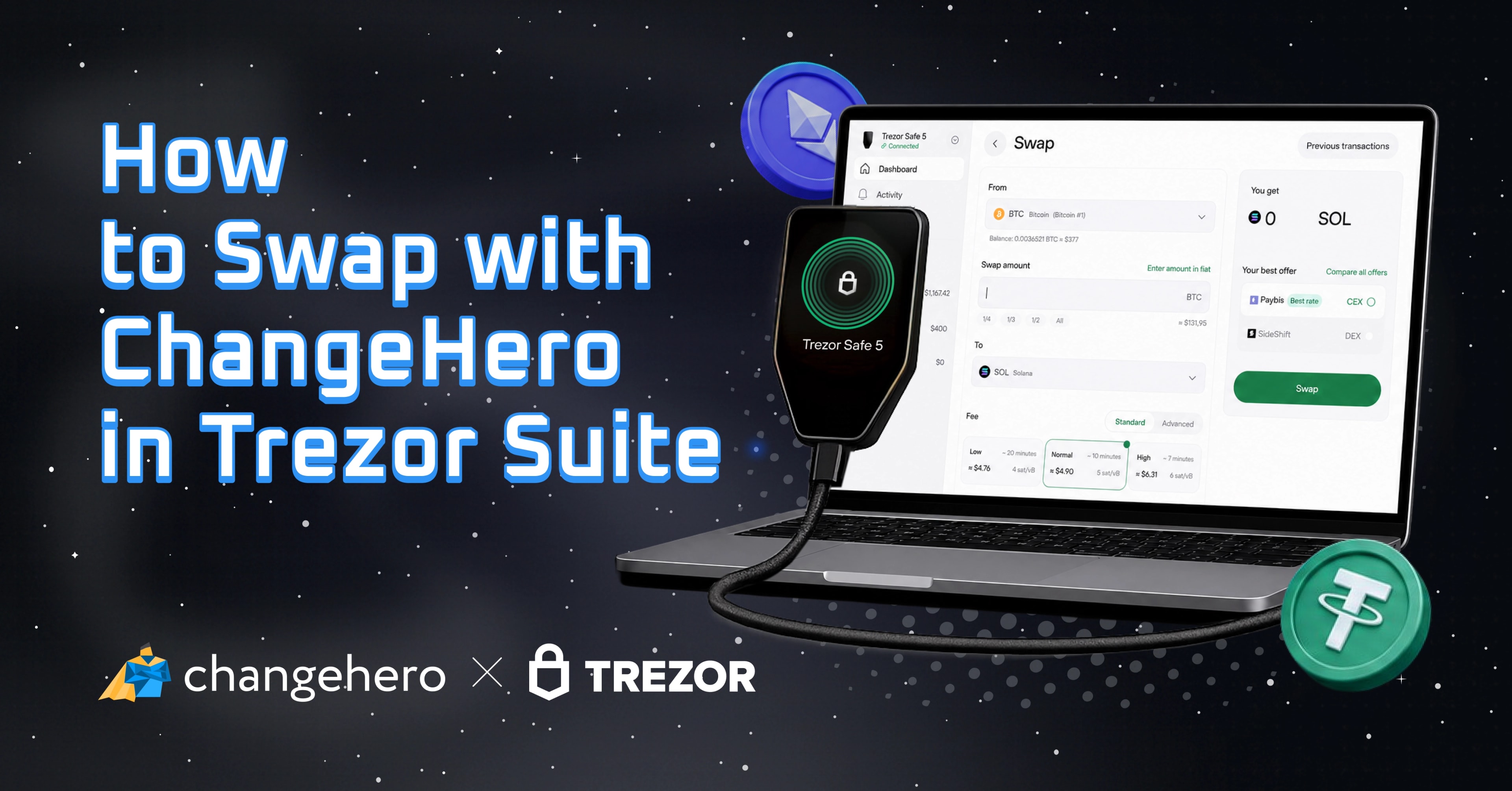

Any time crypto hardware wallets are brought up, Trezor is one of the brand names that comes up. This ubiquity is thanks to it pioneering the very devices over thirteen years ago. In this guide, find out more about what using Trezor is like in 2026 with a concrete example: swapping crypto assets in the companion app with ChangeHero.
Why Trezor
As already mentioned, Trezor is one of the oldest brands in the hardware wallet niche, pioneering the design principles and setting security standards. It’s not just the devices and firmware, though: the parent company’s team can be credited with contributions to Bitcoin’s codebase, and Shamir backup, among other things.
In the spirit of crypto pioneers, Trezor practices commitment to open-source code. Every associated piece of software and even hardware design are published on GitHub, which is a level not every software wallet developers meet.
Over the years, Trezor wallets have evolved from minimalistic to versatile, adding support for features high in demand. Even though you can still buy the current version of Bitcoin-only older devices, flagship Trezor wallets are wirelessly connected sleek devices with color displays and haptic feedback. In any version, the secret keys are kept protected from cybersecurity threats. As a bonus, you can use the signers for password management, too.
Why ChangeHero
Trezor and ChangeHero have been in a partnership since 2019, early in our development path. The reason for this is non-custodial design and integration capabilities: as an instant exchanger that does not require to hold user funds to swap them, ChangeHero was the right fit for Trezor products.
Since then, our team has delivered quality service for Trezor users, with 24/7 support quality often brought up as a highlight in user reviews. With extending asset support to 400+ coins and tokens and improving rate and estimation engines, ChangeHero’s swap service has only progressed over the years.
How to Exchange Crypto with ChangeHero in Trezor Suite Step-by-Step
Trezor Suite is available for major desktop systems (Windows, macOS, Linux) as a standalone application or through a Chromium Web browser (Chrome, Edge, Brave, Opera) on desktop and Android phones at https://suite.trezor.io/web/. Beware of copycats: the legitimate Web version will not ask you to input your recovery phrase.
We will walk you through swapping crypto in the browser version of the companion app. Before you ask, even though you access it through a link and open it in a browser, this does not mean that any of your information is uploaded anywhere. The application runs locally on your device.
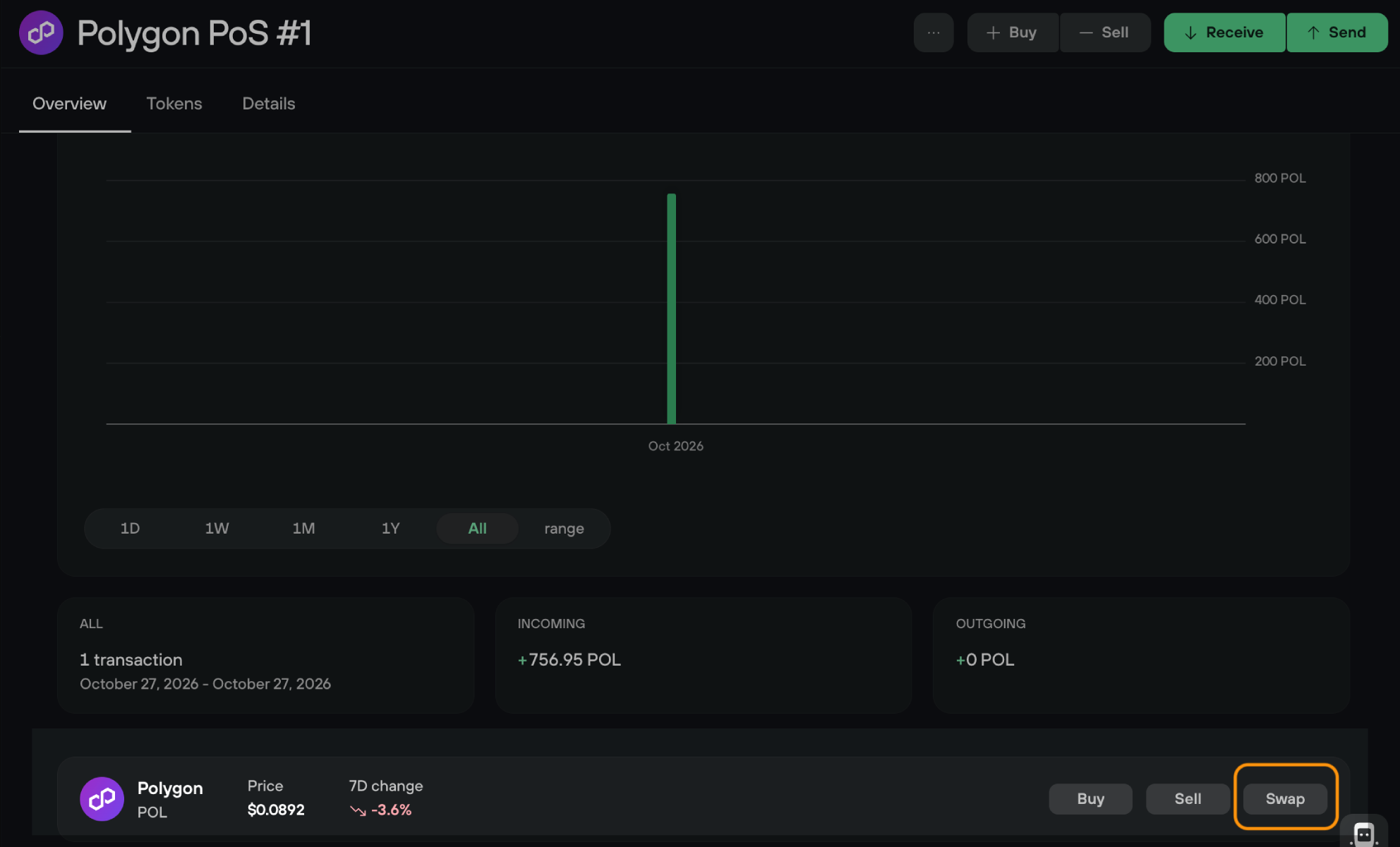
After you connect and, if necessary, set up a Trezor device through USB, you can go to the swap menu from the dashboard through the menu on the left or through the highlighted shortcut in the screenshot above.
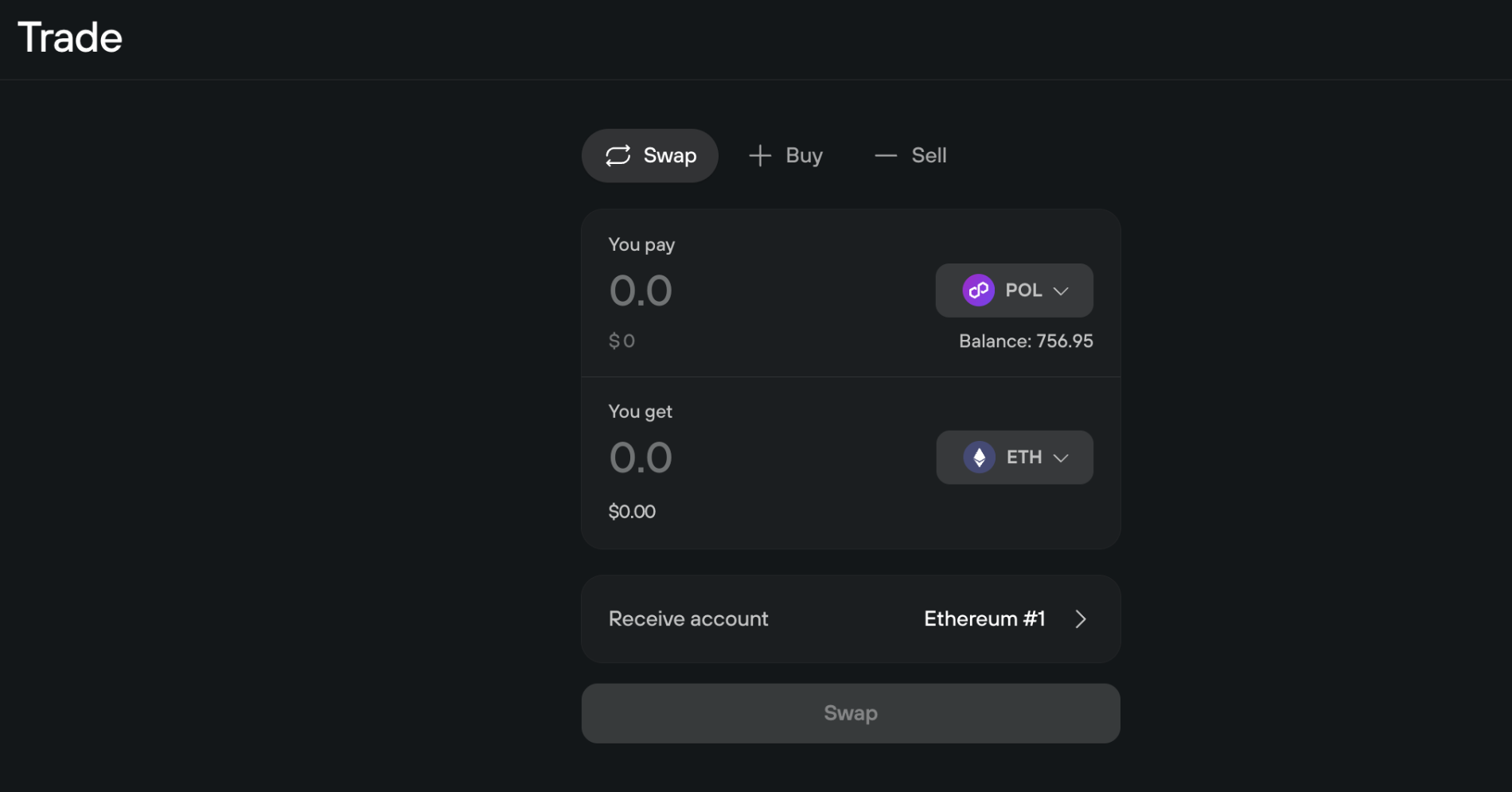
It opens a rather straightforward Trade page with a few input fields: what you will exchange, how much exactly, and where to receive the resulting crypto. Instead of an address, you will see your wallet’s account name but you will be able to review or change it. If you are exchanging to a new asset, the account will create a new appropriate address.
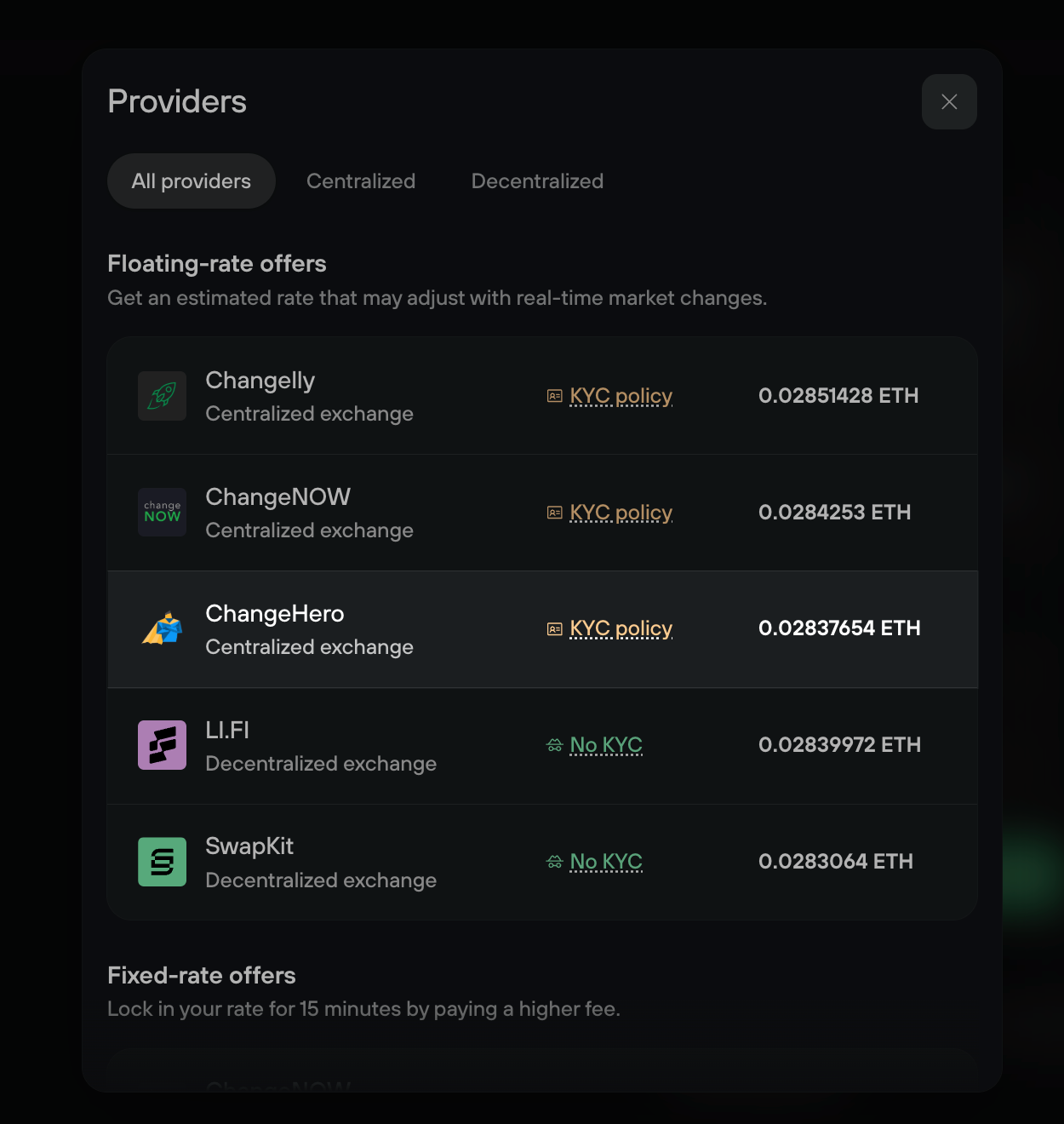
Once you provide a sum to swap and the exact pair, an additional setting will appear: which provider will be handling the swap. By default, you will see the match with the best rate but Trezor keeps this transparent and lets you review the rates and choose an alternative where possible. As a part of this transparency, it provides links to the provider’s Terms of Use for you to review before starting.
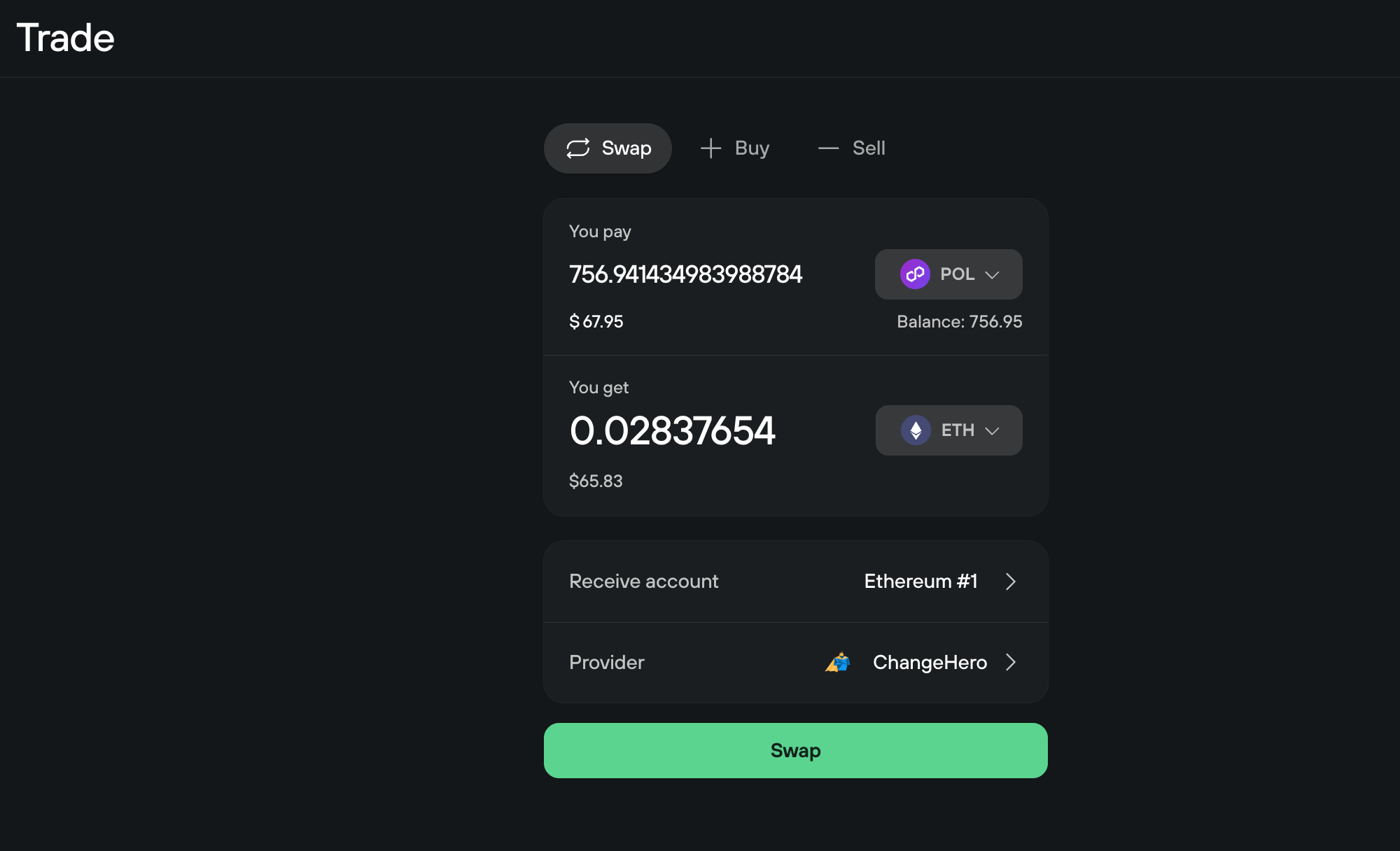
For our guide, the choice goes without saying. In your case, though, you might want to prioritize KYC policy, summarized as short labels, or fixed rates over the best estimate.
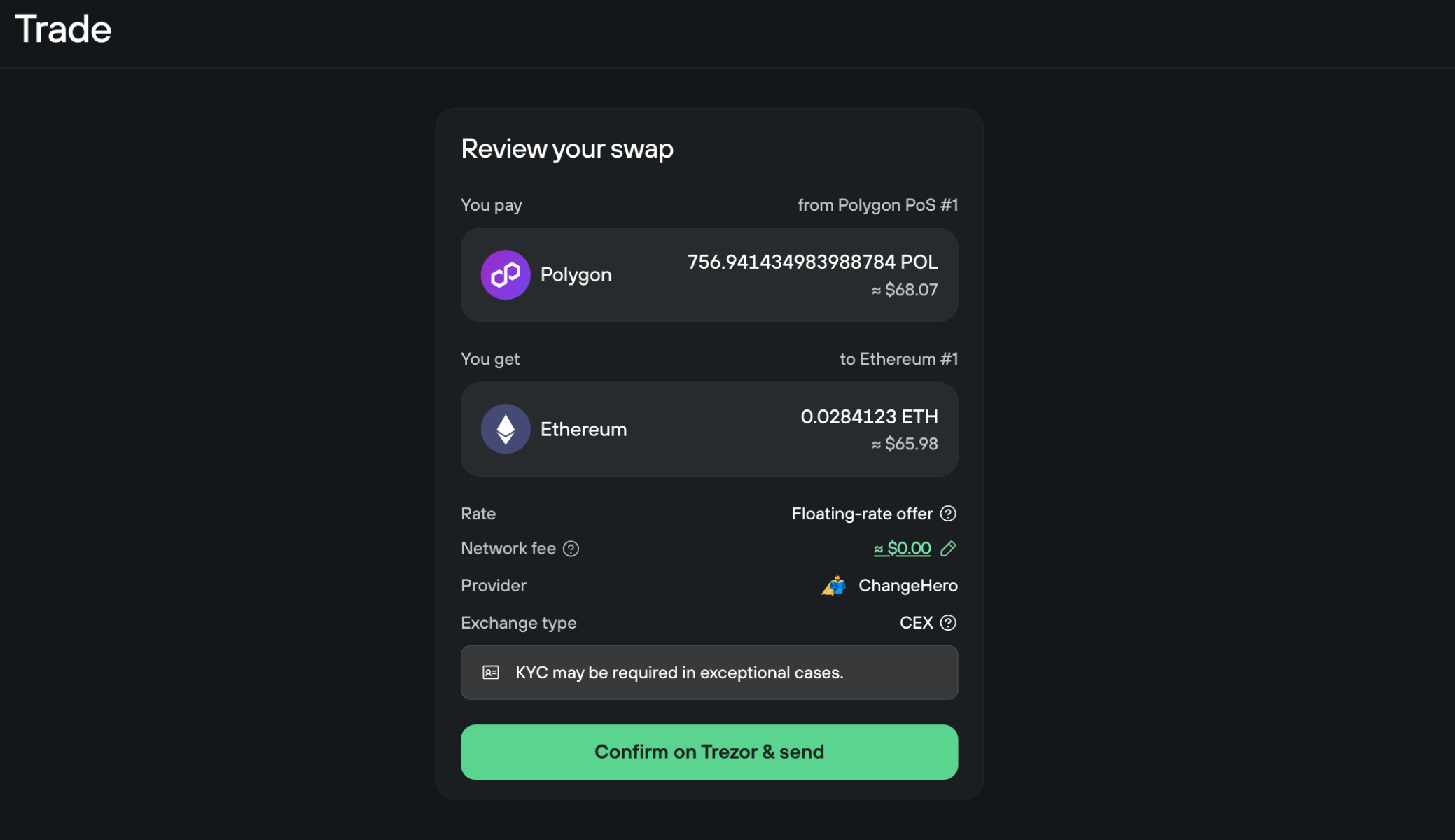
After all details are tweaked and you click Swap, you will see the swap detail summary once again. One last input field at this step lets you tweak the network fee to potentially speed up the process. Get your signer ready!
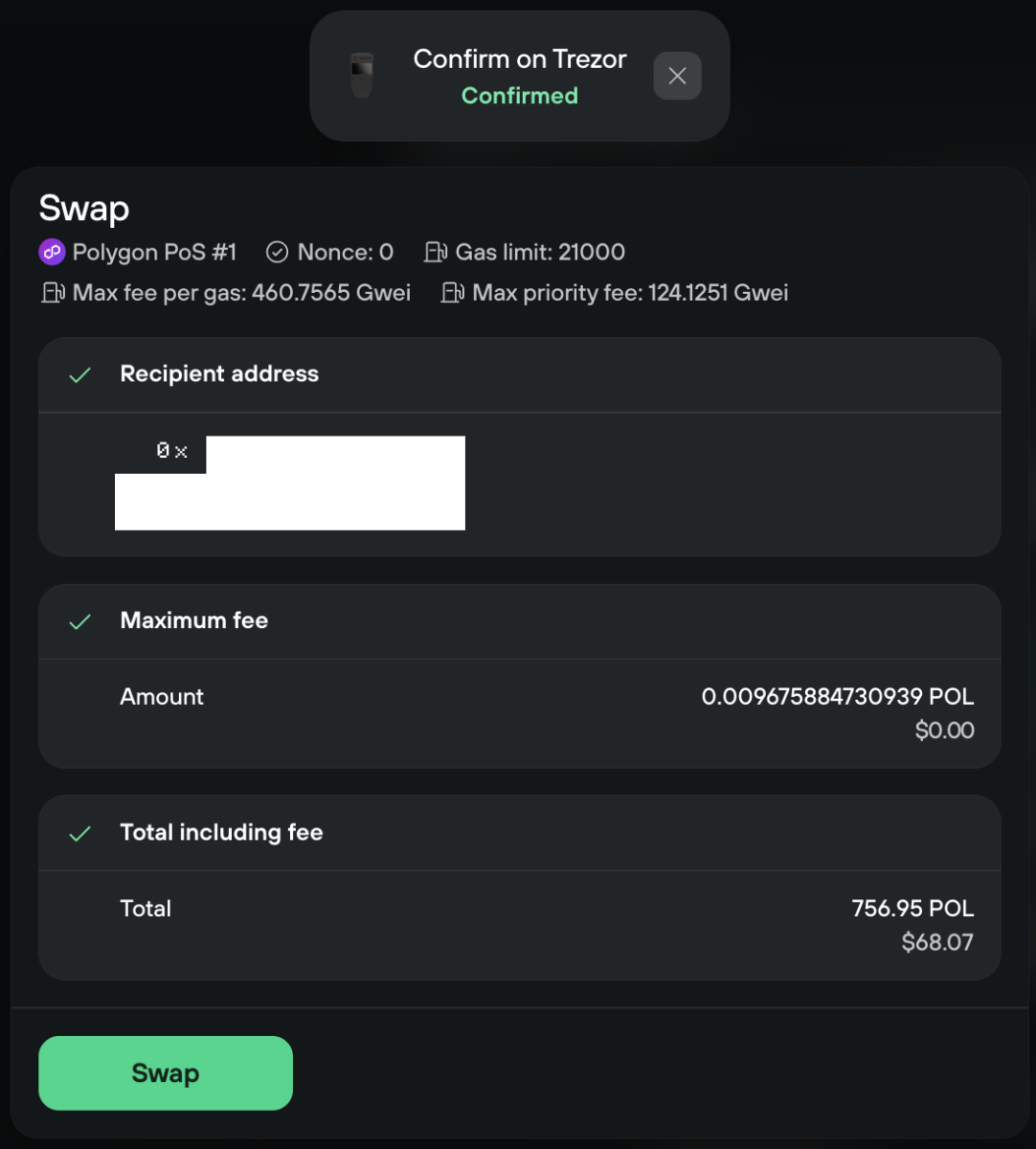
The next step takes place in a separate environment, on the connected Trezor device. After that, you will get the last chance to review and confirm the details: use the signer to check them.
All good? Then click that last button.
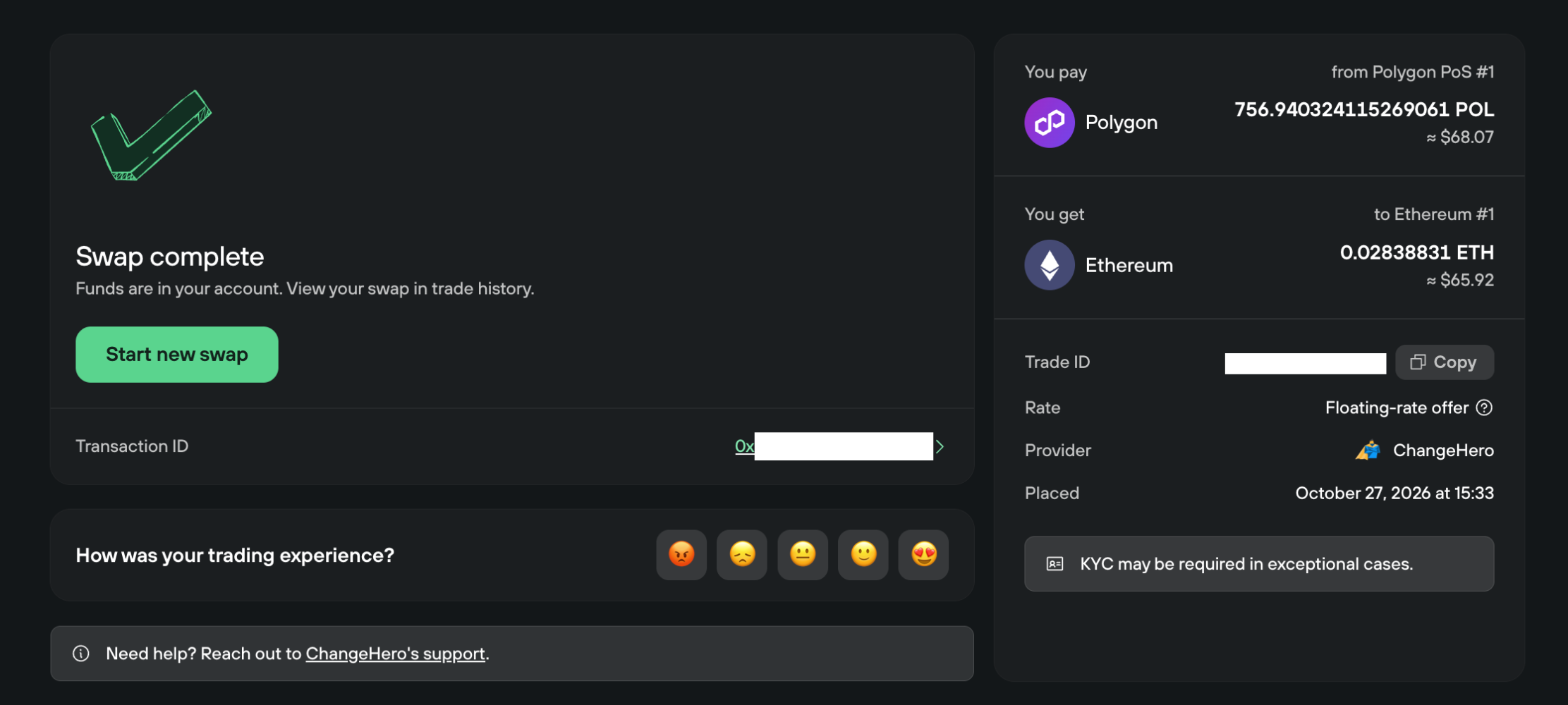
To check the progress, use the Trade detail page. You can freely leave it and return later.
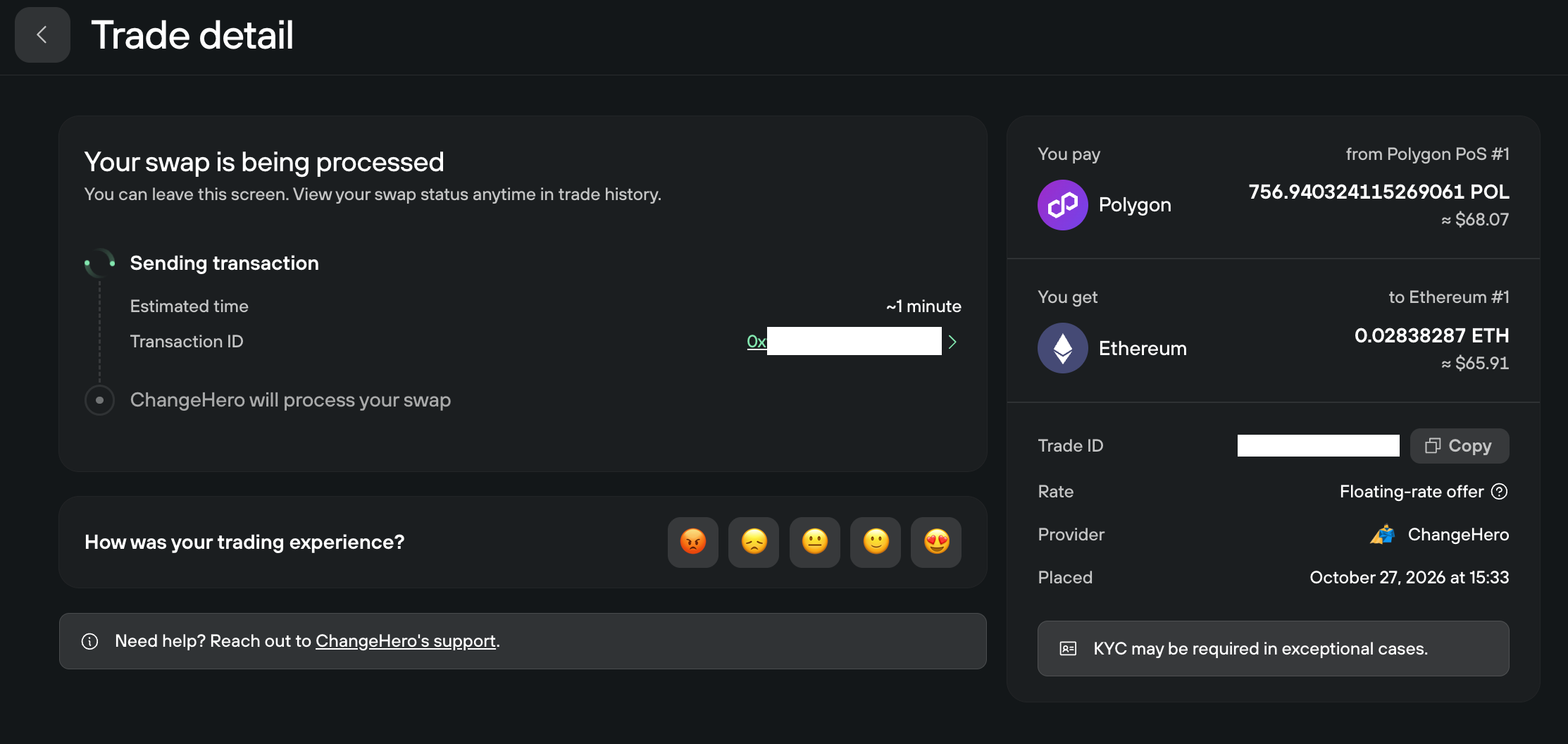
While the trade is in progress or already complete, you can contact support of the provider or let Trezor know how you rate it. It shows up for future reference in the Trade history on the same page.
To sum up, the tutorial may make it seem that there are a lot of steps and checks involved but once you actually perform the process yourself, it is easy to understand. There is even no need to expect excessive friction: at the end of the day, you do two rounds of confirmation with the software and hardware device, which is frankly routine when using one.
Bottom Line
The days when Trezor focused on Bitcoin only are distant history; right now, these are the leading hardware devices on the market for a huge variety of crypto portfolios. With the swap feature, you never compromise the custody over any of your funds, which would be a reasonable dealbreaker for hardware wallet users.
Connect with ChangeHero on social media: Telegram | X | Facebook | LinkedIn
Follow Trezor on social media: X | Reddit | Instagram | Facebook