Best Bitcoin Wallet for Windows in 2026

Key Takeaways
- 🪟 The best Bitcoin wallet for Windows depends on the security model you actually need: a lightweight hot wallet, a full node, a hardware wallet companion, or a beginner-friendly multi-asset wallet;
- 🪟 Electrum remains the strongest match for experienced Bitcoin users who want granular transaction control without running a full node;
- 🪟 Bitcoin Core is not just another desktop wallet. It is full-node infrastructure, with full validation, higher privacy, and a much heavier Windows resource commitment;
- 🪟 Trezor Suite is best understood as a hardware wallet companion, while Exodus prioritizes beginner usability and multi-asset convenience;
- 🪟 Windows users should treat download verification, backups, malware protection, and phishing defense as part of the wallet setup — not optional extras.
Disclaimer
Nothing in this guide constitutes financial, investment, legal, or cybersecurity advice. Bitcoin self-custody creates direct responsibility for private keys, seed phrases, backups, transaction verification, and device security. Wallet features, supported platforms, and security practices can change over time, so readers should verify all software through official project channels before installing or transferring funds.
Choosing the best Bitcoin wallet for Windows in 2026 comes down to a tradeoff between self-custody security controls, day-to-day usability, and how “Bitcoin-native” you want your setup to be. For some users, that means pairing a desktop app with a hardware wallet. For others, it means running a full node, using a lightweight hot wallet, or simply keeping a clean interface for occasional transactions.
This guide focuses specifically on Windows desktop Bitcoin wallets: software clients and companion apps like Trezor Suite, rather than exchanges, a crypto exchange account, or web-based wallets. The differences between these wallet types are covered in the FAQ section, but the working rule is simple: if the wallet controls keys locally, pairs with a device that controls keys, or validates Bitcoin data from your machine, it belongs in this comparison.

The useful question is not “Which wallet is universally best?” but “Which wallet matches your threat model, technical comfort, and Bitcoin balance?” To answer that, we will first shortlist the leading Windows options, then map them to user profiles, compare the core features, and finally walk through trust, verification, backup, and malware-risk controls.
Best Bitcoin Wallets for Windows in 2026
Electrum
- Best for: Experienced Bitcoin users who want a lightweight, fast desktop wallet with granular transaction control.
- Tradeoffs: The interface looks dated and can intimidate newcomers; advanced features like custom transaction fees or coin selection require some learning before they feel intuitive.
- Key Windows-specific notes: Electrum installs with a tiny footprint compared to full-node clients and syncs almost instantly by connecting to remote servers rather than downloading the blockchain, so it stays light on background resource usage.
- Power-user features to know: Coin control, PSBT (Partially Signed Bitcoin Transaction) support, and custom server connections for users who want more privacy over how their wallet fetches blockchain data.
- Choose this if… you want a fast, flexible Bitcoin desktop wallet and do not need full-node-level validation.
Electrum was first released in 2011, making it one of the longest-running Bitcoin wallet projects still actively maintained today. That longevity is not just trivia. It is one reason Electrum remains a common Windows recommendation in 2026: long-lived open-source projects tend to have broader hardware wallet compatibility and a more mature plugin ecosystem, since developers of other tools have had over a decade to build and test integrations against it.
Bitcoin Core
- Best for: Users who want full validation of the Bitcoin blockchain and maximum control over privacy, rather than trusting a third-party server.
- Tradeoffs: Initial setup requires downloading and verifying the entire blockchain history, which can take days depending on connection speed, and the interface is far less polished than consumer-focused wallets.
- Key Windows-specific notes: Running Bitcoin Core as a full node means committing to several hundred gigabytes of disk usage and ongoing background bandwidth and CPU use as it stays synced. This is a full node, not a casual desktop wallet, and Windows users should treat it as infrastructure rather than a quick-start app.
- Power-user features to know: Full node validation, built-in support for watch-only wallets, and native integration with other software that wants to verify transactions against your own node instead of a third party.
- Choose this if… you prioritize full validation and privacy/control over convenience.
Bitcoin Core is the most demanding option in this guide, but that is exactly the point. It gives you the closest thing to independent verification because your machine checks the Bitcoin blockchain itself. The cost is time, storage, bandwidth, and ongoing maintenance.
Trezor Suite
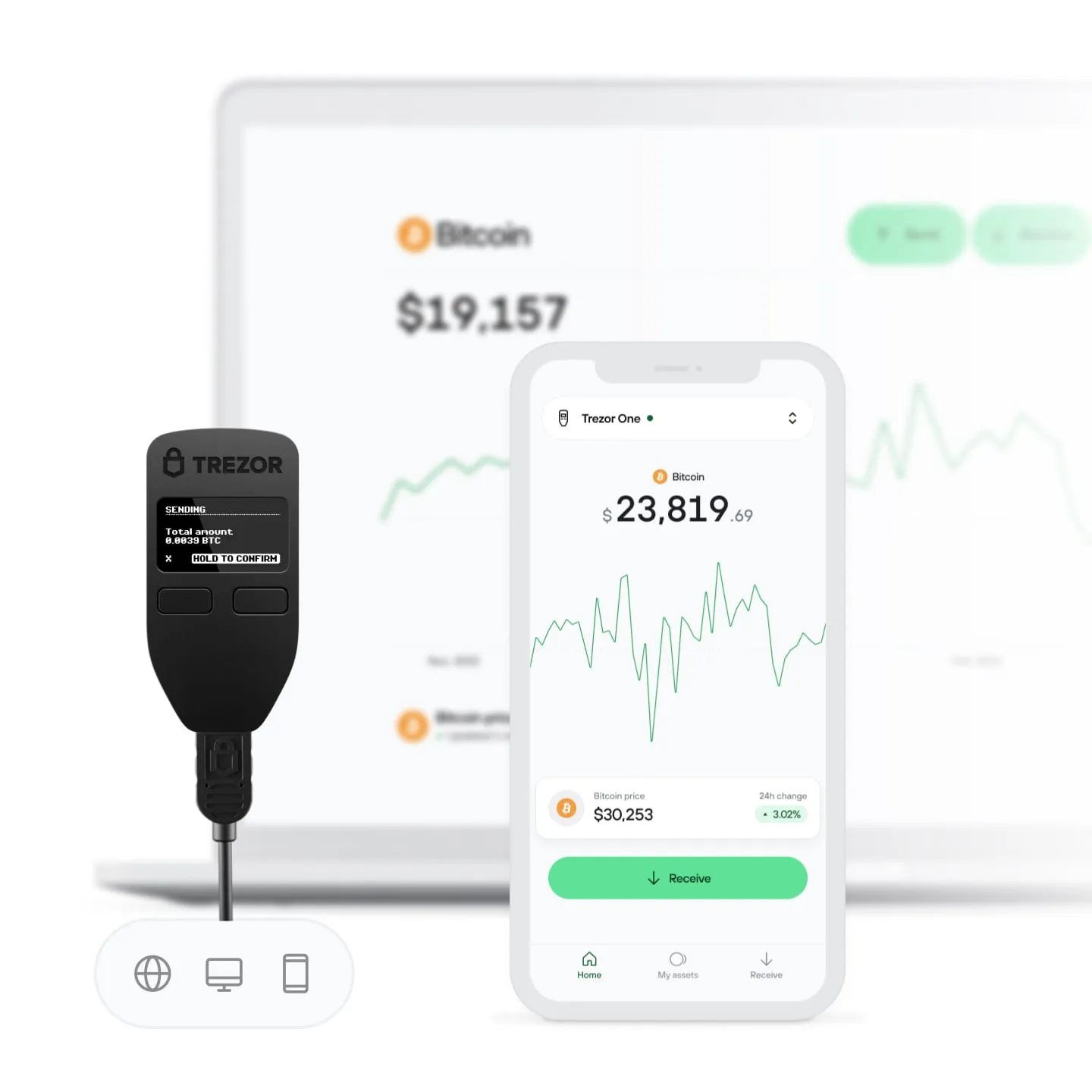
- Best for: Windows users who already own, or plan to buy, a Trezor hardware wallet and need a companion app to manage it.
- Tradeoffs: Trezor Suite is not a standalone key-storage wallet. It is only useful alongside physical hardware, and some users find firmware update prompts and onboarding steps repetitive across sessions.
- Key Windows-specific notes: Private keys never touch the Windows machine; the hardware device signs transactions internally while the companion app provides the portfolio view, firmware and app management, and transaction construction interface on your desktop.
- Power-user features to know: Multi-account portfolio tracking, in-app firmware/app installation management, and transaction construction that is then passed to the hardware wallet for signing.
- Choose this if… your security model centers on a hardware wallet and you want a Windows desktop companion rather than a software-only key store.
Trezor Suite is best evaluated as an interface, not as the place where security actually lives. The important distinction is that the app prepares and displays activity, while the device itself generates keys, stores keys, and signs transactions.
Exodus
- Best for: Beginners who want a visually polished, easy-to-navigate desktop wallet that supports Bitcoin alongside many other crypto assets.
- Tradeoffs: Its closed-source codebase makes independent verification harder, and the multi-asset, convenience-first design is not built for users who want Bitcoin-native features like coin control or full node validation.
- Key Windows-specific notes: Exodus installs and runs like a typical consumer desktop app, with minimal background resource usage and no node-syncing requirement, making it approachable for first-time Windows users.
- Power-user features to know: Built-in exchange functionality, portfolio tracking across multiple cryptocurrencies, and a simplified send/receive flow designed for non-technical users.
- Choose this if… you are new to Bitcoin and want a friendly multi-asset desktop wallet, with the understanding that as your holdings grow, you may want to graduate to a more verifiable or Bitcoin-native setup.
With these four shortlisted, the tradeoff becomes clearer. Electrum is for control. Bitcoin Core is for full validation. Trezor Suite is for hardware wallet workflows. Exodus is for ease of use and multi-asset convenience. The next step is matching those tools to actual user behavior.
Wallet Choice by Experience and Security Needs
Ideally, a wallet choice should start with habits, not branding. How much Bitcoin are you securing? How often do you transact? Are you willing to verify downloads, manage backups, review transaction details, and maintain hardware? The “safest” wallet on paper can become risky if the user cannot operate it correctly.
Beginners
This is you if…
- You are holding a small-to-moderate amount of Bitcoin and other crypto, and losing some growth upside to convenience does not worry you;
- You want a hot wallet you can open, use, and close without reading documentation first;
- You transact occasionally rather than daily, and you value a clean interface over granular control;
- You would rather manage one app for multiple assets than juggle Bitcoin-only tools, for example beginner-oriented multi-asset apps like Atomic Wallet, Guarda, or BitPay Wallet.

Avoid this path if…
- You already hold enough Bitcoin that losing it would be financially painful;
- You want to independently verify blockchain data rather than trust a vendor’s infrastructure.
Best match from this guide: Exodus as the primary choice, with Electrum as the runner-up when you are ready for more Bitcoin-native control.
Graduation triggers — move on from a convenience-first hot wallet when:
- Your balance grows past what you would be comfortable losing to a single app or device;
- You start wanting control over transaction fees or which coins, meaning UTXOs, get spent;
- You want to reduce reliance on one Windows device by adding a hardware wallet into your setup.
Advanced Users
This is you if…
- You manage a meaningful Bitcoin balance and want direct control over how transactions are built and broadcast;
- You are comfortable with a less polished interface in exchange for flexibility;
- You transact frequently enough that fee optimization and privacy choices matter, including choosing an appropriate miner fee rather than relying on default settings;
- You only need Bitcoin support, not a multi-asset portfolio view.
Avoid this path if…
- You want a one-click experience without configuring server connections or reviewing transaction details.
Best match from this guide: Electrum.
A power-user:
- Prefers explicit fee control over automatic fee suggestions;
- Uses coin control / UTXO selection when sending;
- Works with PSBT (Partially Signed Bitcoin Transaction) signing flows;
- Maintains watch-only wallets for monitoring without exposing keys;
- Connects to custom or personal servers rather than defaults;
- Is comfortable troubleshooting sync or connectivity issues independently.
Electrum fits this profile because it exposes the machinery of Bitcoin transactions without forcing a full-node commitment. However, the same transparency that makes it powerful also means the user carries more operational responsibility.
Full-Node Users
This is you if…
- Privacy and independent transaction validation matter more to you than setup speed;
- You are protecting a balance large enough that trusting third-party servers feels unacceptable;
- You are willing to dedicate a Windows machine, or leave one running, to stay synced long-term;
- You want to support the Bitcoin network’s decentralization directly rather than relying on others’ nodes.
Avoid this path if…
- You need a quick-start wallet for occasional, low-effort transactions.
Best match from this guide: Bitcoin Core.
What you are committing to on Windows:
- A disk footprint that keeps growing over time as the blockchain expands;
- An initial sync that can realistically take multiple days on typical consumer internet connections;
- Ongoing background CPU, bandwidth, and storage usage even after the initial sync completes.
By design, Bitcoin Core is not a convenience product. It is the option for users who want to replace trust in someone else’s server with their own validation.
Hardware Wallet Users
This is you if…
- You want your private keys to never touch an internet-connected Windows machine;
- You are protecting a balance where cold storage-level isolation is worth the extra device step;
- You are fine with an initial hardware purchase and firmware update routine;
- You still want a visual portfolio and transaction-building interface on Windows.
Avoid this path if…
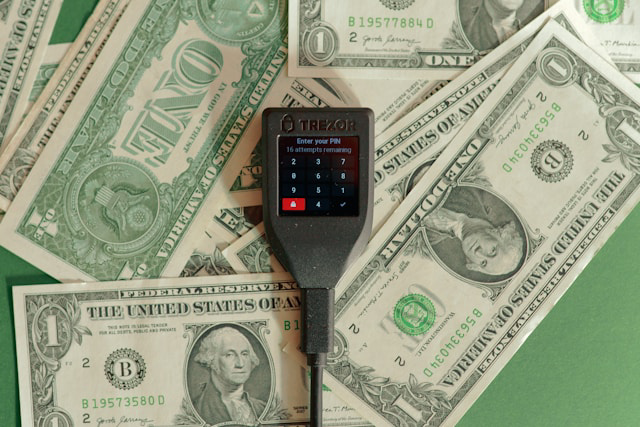
- You expect the companion app alone to secure your funds without understanding that the device itself confirms and signs each transaction.
Best match from this guide: Trezor Suite.
Windows app responsibilities:
- Displaying portfolio balances and transaction history;
- Constructing transactions before they are sent to the device;
- Managing firmware and app installations on the hardware wallet;
- Providing the interface for initiating sends and receives.
Device responsibilities:
- Generating and storing private keys in isolated hardware;
- Signing transactions internally, away from the Windows environment;
- Requiring physical confirmation before any transaction is approved;
- Enforcing that keys never leave the device, even if the Windows machine is compromised.
If your biggest concern is malware on a daily-use Windows PC, hardware wallet isolation paired with Trezor Suite reduces exposure more than any hot wallet can. If you are worried about downloading a fake installer, that is a trust-and-verification problem rather than a wallet-choice problem.
Feature Comparison Across Windows Bitcoin Wallets
| Feature Area | Electrum | Bitcoin Core | Trezor Suite | Exodus |
|---|---|---|---|---|
| Security Controls | Coin control, PSBT, watch-only mode, custom fees (RBF) | Full-node validation, watch-only wallets, PSBT support | Device-based key isolation, companion app only | App-level password lock, no coin control |
| User Experience | Technical, fast, minimal hand-holding | Utilitarian, built for infrastructure not quick use | Guided, companion app — device confirms each action | More polished, beginner-first onboarding |
| Multi-Currency Support | Bitcoin-only | Bitcoin-only | Multi-asset portfolio view | Multi-asset with built-in swaps |
| Hardware Wallet Compatibility | Pairs with hardware wallets for offline signing | Pairs with hardware wallets; can run as a validating backend | Is the hardware companion app itself | Pairs with Trezor and Ledger hardware wallets for offline signing |
Security Controls
When comparing Windows Bitcoin wallets, look for observable controls:
- Watch-only mode lets you monitor balances and incoming transactions on an internet-connected PC without ever exposing spending keys to that machine.
- Coin control / UTXO selection prevents accidental merging of unrelated coins, which reduces address-linking mistakes and improves fee predictability.
- PSBT (partially signed Bitcoin transaction) support enables an offline or hardware-based signing workflow, so a compromised Windows machine never sees a fully signed transaction with exposed keys.
- Multisig support splits signing authority across multiple devices or locations, so a single infected PC cannot move funds alone.
- Passphrase support adds a second secret layer on top of a seed, limiting the damage if a backup is ever found.
- Fee controls (RBF/CPFP) give you a way to adjust stuck transactions manually instead of depending on a wallet’s built-in automation.
- Local encryption and app lock reduce the damage surface if malware or another user gains local access to the machine, since the wallet file or app itself is not readable without a separate unlock step.
User Experience

On Windows, UX differences show up quickly. Four dimensions matter most:
- Onboarding clarity — Is the first-run setup self-explanatory, or does it assume prior Bitcoin knowledge?
- Default safety rails — Does the wallet label addresses, warn before replace-by-fee actions, or otherwise nudge you away from mistakes by default?
- Transaction building transparency — Can you see a fee breakdown and change outputs before broadcasting, or is that detail hidden behind a single “send” button?
- Update cadence / upgrade prompts — How often does the wallet interrupt you with updates, and how clearly does it explain what changed?
In practice, these tradeoffs correlate with control. Wallets that expose more knobs, such as Electrum and Bitcoin Core, also hand you more responsibility for using them correctly. More guided experiences, such as Exodus and Trezor Suite, trade some transparency for simplicity.
Multi-Currency Support
Bitcoin-only preference: Electrum and Bitcoin Core are Bitcoin-first by design. This keeps the mental model simple: one asset, fewer settings, and a smaller attack surface because there is no multi-chain code or swap infrastructure to account for.
Multi-asset convenience: Trezor Suite and Exodus are typically used as multi-asset experiences, offering a combined portfolio view and in-app swaps. That convenience comes with more moving parts — more supported networks, more app logic, and more surface area overall. It suits readers who want one interface for several holdings rather than a Bitcoin-native setup.
Hardware Wallet Compatibility
It is worth separating two different things that both get called “hardware compatible” on Windows:
- Hardware companion apps — Trezor Suite exists specifically to manage a Trezor device. It does not store keys itself; it configures and talks to hardware that does.
- Software wallets that pair with hardware — Electrum and Exodus can connect to a hardware wallet for signing, but they also function independently as a software wallet. The hardware pairing is optional, not its core identity.
What “compatible” means, in outcomes:
- The hardware device shows and requires confirmation of the destination address and amount before signing;
- Transactions move through a PSBT or equivalent offline-signing flow, keeping private keys off the Windows machine;
- The Windows side can run in watch-only mode, tracking balances without ever holding spending authority.
If you are budgeting for this path, typical hardware wallet devices commonly run in the $250 range, which is worth factoring in alongside the software choice itself.
Trust and Reputation Signals
Before any desktop wallet touches Bitcoin, the installer itself has to be trusted. This is where many self-custody failures happen: not in advanced cryptography, but in downloading the wrong file from the wrong place.
Official Download Sources

The download source is the first trust signal worth checking, and not all sources carry the same risk.
- Official project website release pages — the highest-confidence source. The domain should match what is referenced in the project’s own documentation or GitHub README, not just what appears in a search result.
- Official GitHub/GitLab releases linked from the project site — acceptable when the repository is the one explicitly linked from the project’s official website, not a forked or look-alike repo with a similar name.
- High-risk distribution paths to avoid — search engine ads promoting wallet downloads, third-party “download mirror” sites, and links shared in social media comments or messaging apps. These are common vectors for distributing tampered installers that compromise a private key before a user ever realizes it.
Before running any installer, right-click the file, open Properties, and check the Digital Signatures tab for the publisher name. Does it match the project’s known legal entity or developer name? If Windows SmartScreen flags the installer as unrecognized or shows a generic/unverified publisher, treat that as a reason to pause and re-verify the source, not something to dismiss automatically. This is a sanity check on publisher identity, not a guarantee of safety by itself.
Digital Signature Verification
Speaking of digital signatures, Windows users may encounter two distinct types of signatures when evaluating a Bitcoin wallet’s authenticity, and they verify different things:
- PGP/GPG signatures on release artifacts — these are typically published alongside source code or binaries on the project’s release page, signed with the developer’s or release manager’s key, confirming the file matches exactly what the signer published.
- Windows Authenticode signing on .exe/.msi installers — this is the certificate-based signature Windows itself checks, tying the installer to a registered publisher identity and confirming the file has not been altered since that publisher signed it.
What verification does — and does not — prove:
- It confirms the file’s integrity, meaning it has not been tampered with in transit;
- It confirms continuity of publisher identity across releases;
- It does not confirm that the publisher is trustworthy, that the underlying code is free of bugs, or that the wallet is a good fit for your security needs.
Verification is a filter, not a final verdict.
Open-Source Code
“Open-source” is often used as marketing shorthand, but as a trust signal it only holds weight when a few specific conditions are met:
- Public repository availability — the source code is actually published and browsable, not just described as open-source in marketing copy.
- Reproducible builds or deterministic build notes — if the project publishes documentation showing that compiling the published source produces the same binary users download, that is a stronger signal than source availability alone.
- Independent audits or peer review signals — evidence that people outside the core development team have reviewed the code, whether through formal audits, public security disclosures, or active community review.
- Binaries built from the inspectable repo — confirmation that what you install is actually built from the same codebase you, or others, can read, rather than a separate unverified build process.

Open-source code increases how inspectable a Bitcoin wallet is, which matters when private keys are involved. However, inspectability alone does not automatically mean the software is safe. It means independent verification is possible.
Developer Activity
A wallet’s ongoing maintenance is itself a reputation signal, and it is one a reader can check directly without specialized tools:
- Recency of releases — how long ago was the last official release, relative to how actively Bitcoin-related software typically needs updates?
- Frequency of commits — is development activity continuous, or has the repository gone quiet for an extended stretch?
- Responsiveness to issues — are reported problems acknowledged and addressed, or do open issues accumulate without developer engagement?
- Clarity of security advisories and release notes — when something changes, does the project explain what and why, or are releases opaque?
Look for evidence that Windows support is actively maintained — recently updated installers, and Windows-specific issues being acknowledged and resolved — rather than the build being an afterthought to a primarily Linux- or macOS-focused project.
Once a desktop wallet clears these authenticity checks — official source, verified signature, inspectable code, active maintenance — the next risk layer is not the software. It is the Windows environment around it.
Windows Security and Backup Practices
A Bitcoin wallet on Windows is only as strong as the machine, backup process, and user habits surrounding it. Private key protection, encrypted backups, malware defense, and phishing discipline should be treated as one operating system-level security model.
Private Key Protection
On a general-purpose Windows PC, your private key does not just live in one place. It can be exposed to threats through several everyday habits without you realizing it. Before deciding how to store a private key long-term, map out where it can be exposed:
- Wallet file/key material on disk — Desktop wallet software, like Electrum, stores key material in a wallet file on your drive. Mitigation: Keep this file encrypted with a strong wallet password, and never move or copy it into a folder you have not deliberately checked for sync or backup behavior.
- Clipboard contents — Copying a private key or seed word, even briefly, leaves it sitting in Windows clipboard history, which other apps can sometimes read. Mitigation: Disable clipboard history through Settings > System > Clipboard before copying anything sensitive, and clear it immediately after.
- Screenshots/screen recording — A quick screenshot to “remember” a seed phrase or QR code can end up synced to cloud photo libraries or recovered by malware scanning for images. Mitigation: Never screenshot key material; if you must capture a QR code for setup, delete the file and empty the Recycle Bin immediately.
- Cloud sync folders — Folders like OneDrive, Dropbox, or Google Drive often sync automatically, including subfolders you did not intend to share. Mitigation: Store wallet data and backups outside any synced directory, and double-check that your wallet’s default save location is not nested inside Documents or Desktop if those are synced.
- Browser password managers/notes — Saving a seed phrase or private key as a “note” in a browser-based password manager exposes it to browser extension vulnerabilities and account-sync risks. Mitigation: Never store private key or seed data in a browser password manager. Use it only for exchange logins, not for cold storage secrets.

Once you understand where exposure can happen, the next decision is how much value you are willing to expose through a Windows-connected wallet at all.
- Treat it as a spending wallet if the balance is something you could comfortably afford to lose, and you are transacting frequently, whether daily or weekly;
- Move it toward cold storage if the balance represents savings you would be upset to lose, even if transactions are infrequent;
- Reassess immediately if your balance crosses a threshold that would materially affect you financially.
At that point, the convenience of a desktop wallet no longer matches the value-at-risk, regardless of how carefully you followed the steps above.
Encrypted Backups
Backing up a Bitcoin wallet on Windows is not a single action. It is a checklist, and missing one item can mean a successful restore still leaves you locked out of something important.
- Seed phrase backup (offline) — Restore purpose: recovers full wallet access and spending ability from scratch on any compatible wallet; on many wallets this seed is represented as a mnemonic phrase that must be copied perfectly, in order, without photos or cloud storage.
- Wallet file/datadir backup (if applicable) — Restore purpose: preserves wallet-specific settings, labels, and transaction history that a seed phrase alone will not reconstruct.
- Transaction labels/notes/export — Restore purpose: keeps tax records and privacy-related labeling intact after a reinstall, so you are not reconstructing transaction history manually.
- Watch-only/exported xpubs (if used) — Restore purpose: lets you re-establish balance monitoring on a watch-only setup without needing to re-expose spending keys.
Once you know what to back up, apply a 3-2-1 pattern adapted for Bitcoin on Windows: at least 3 copies, across 2 different media types, with 1 copy offsite. On Windows, that realistically translates to something like an encrypted external SSD for one copy and a printed or metal seed record for another, with a third copy — ideally the offsite one — stored somewhere physically separate from your home or primary location.
The gotcha worth repeating: backups stored only on the same PC as your wallet do not protect you from ransomware or a failed drive. Both can take out your only copy and your spending access at the same time.
Additionally, a backup you have not tested is a backup you do not actually know works. Run this quarterly restore drill as a test:
- Set up a fresh Windows user profile or a separate test machine.
- Install the wallet software fresh, without touching your live wallet.
- Restore using only your offline seed backup, or watch-only export if applicable.
- Confirm the generated receive addresses match known addresses from your live wallet.
- Check that labels and notes are restored correctly if you are testing that backup component too.
- Do not send or receive any funds during this test. It is a verification step only.
- Wipe the test environment by uninstalling the wallet and deleting the profile once addresses are confirmed.
Malware Protection

Generic antivirus advice does not address the specific ways Windows malware targets wallet users. A more relevant hardening checklist ties each step directly to a wallet-specific consequence:
- Windows updates discipline — Unpatched systems are a common entry point for the keyloggers and info-stealers that specifically target clipboard and wallet file access.
- Use a standard (non-admin) daily account — Running as a standard user limits what malware can install or modify without your explicit approval, reducing the chance of silent file exfiltration from a wallet directory.
- Full-disk encryption status check (BitLocker or device encryption) — Confirm it is actually enabled, since an unencrypted drive means a stolen or discarded PC can have wallet files read directly, bypassing any in-app password.
- Isolate wallet use from high-risk activities — Avoid using the same session for pirated software or unfamiliar browser extensions, both common vectors for ransomware and clipboard-hijacking malware that swaps a Bitcoin address at the exact moment you paste it.
Beyond hardening the OS itself, it helps to think in terms of reducing your signing surface — minimizing what actually touches your private key on Windows. Where possible, prefer hardware-wallet signing so the key never enters the Windows environment at all. For balances that must stay in a hot desktop wallet, keep them intentionally limited to an amount you would accept losing.
Additionally, consider separating general browsing and email from wallet operations entirely, even if that just means using a dedicated Windows user profile for wallet activity. This alone cuts off a large share of the exposure paths malware relies on to reach a private key.
Phishing Protection
Once a wallet is installed from a verified source, phishing risk does not disappear. It shifts to different moments. Three vectors are worth watching for specifically:
- Fake update prompts, in-app or via email — Only trust update notices that match release notes published through the project’s already-verified official channel. Do not click an in-app “update now” button without cross-checking it against the official site first.
- Search-engine “support” pages asking for recovery phrases — No legitimate wallet support process ever requires your seed phrase. Treat any page or chat that asks for it as a scam, regardless of how official the branding looks.
- Lookalike domains/social DMs urging a “resync” or “validate” — These messages try to create urgency around a fabricated wallet issue. Verify any such claim directly through the project’s official channel rather than the link provided in the message.
A separate risk appears at the moment of sending Bitcoin: clipboard-replacement malware can silently swap a copied receiving address for an attacker’s address before you paste it. Build this habit into every transaction: verify the first and last 6–8 characters of the address after pasting, or use a QR code where available. If you are using a hardware wallet, always confirm the address shown on the device’s own screen before approving.
This is a behavioral check performed at transaction time, not a substitute for keeping your private key or seed phrase offline.
Conclusion
The best Bitcoin wallet for Windows in 2026 is not a single product for every user. It is the wallet whose security model fits the amount of Bitcoin involved, the user’s technical discipline, and the expected transaction pattern.
- Electrum is the strongest lightweight choice for advanced Bitcoin users who want coin control, PSBT, custom fees, and practical flexibility.
- Bitcoin Core is the full-node path for users who value independent validation and privacy enough to accept storage, bandwidth, and maintenance costs.
- Trezor Suite is the appropriate Windows companion for the Bitcoin-first Trezor hardware wallets, with the important caveat that the device, not the app, secures the keys.
- Exodus is the easiest entry point for beginners who want a polished multi-asset experience, although it is not the most Bitcoin-native or inspectable choice.
After all, wallet selection is only the first layer. Official downloads, digital signature verification, encrypted backups, malware discipline, and phishing resistance are what turn a wallet choice into a working self-custody setup.
Frequently Asked Questions
Do desktop wallets work with hardware wallets?
Yes, but there are two distinct relationships worth separating. A desktop wallet like Electrum can pair with a hardware wallet, using it as an external signer while the desktop app still functions as a software wallet on its own.
A companion app like Trezor Suite works differently. It does not store or manage keys itself; its entire purpose is to configure and interface with a connected hardware wallet. In either case, here is what you should notice when it is paired correctly: the Windows app can build and display a transaction, but the hardware device shows the destination address and amount and requires physical confirmation before producing the signature.
Can I store large amounts of Bitcoin in a Windows desktop wallet?
Yes but you would expose it to threats excessively. Larger Bitcoin holdings are better treated as long-term storage, where private keys stay isolated from a general-purpose Windows environment rather than sitting in a hot wallet exposed to everyday browsing and software risks.
A Windows-only desktop wallet is best understood as a spending wallet model, suited to balances you would be comfortable using and, if necessary, losing. However, this is not all-or-nothing. You can still view balances and prepare transactions on Windows using a watch-only setup, while keeping actual signing on a hardware wallet. Convenience and isolation are not mutually exclusive.
What is the difference between a desktop wallet and a web wallet?
A desktop wallet is a local application that controls your private keys directly on your device, or acts as a companion interface to a hardware wallet, as with Trezor Suite.
A web wallet, by contrast, is a browser-based service where keys are typically managed server-side or mediated through the provider rather than held locally. The practical implication for Windows users is that a desktop wallet can operate without ever leaving keys inside a browser session, while a web wallet trades that local control for access-from-anywhere convenience. The tradeoff is reliance on the web provider’s own account security and infrastructure.